
How to Find Unallocated, Unredeemed, and Returned Vouchers
Updated: [Sat 11 April 20206]
Quick Answer: To see unallocated or unredeemed vouchers in TicketingHub, go to Orders, click Filter By → Voucher Booking, and select Is Voucher. This shows all vouchers not yet redeemed — including any bookings returned to the voucher stage after a cancellation. To find potentially expired vouchers, combine this filter with Date Booked On set to your expiry window.
Whether you're checking for double redemptions, auditing vouchers after a date cancellation, or tracking down a report of potentially expired credits — here's how to get a full picture of your voucher status in TicketingHub.
Steps |
|---|
Steps to Find Unallocated and Unredeemed Vouchers
Step 1: Access the Orders Page
- Go to Orders in your TicketingHub dashboard.
- Locate the Filter By box to refine your search.
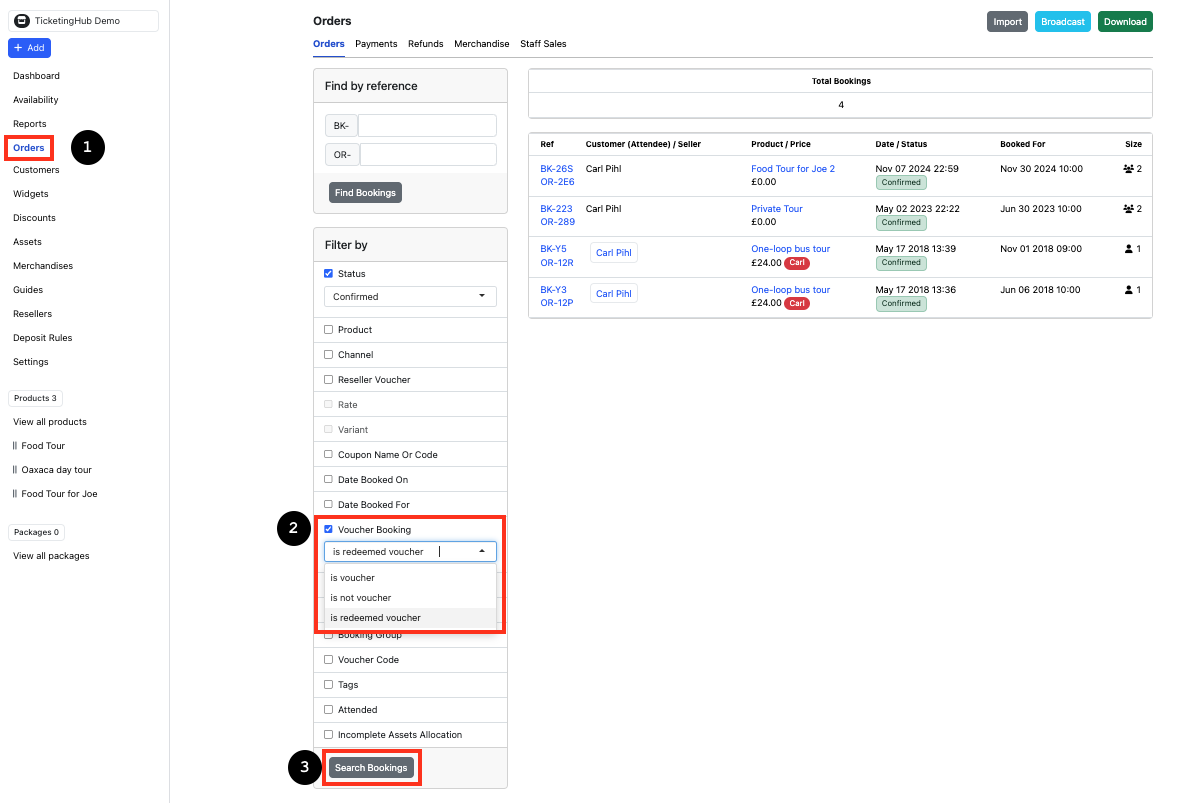
Step 2: Filter by Voucher Status
- Click on Voucher Booking.
- Choose the relevant filter option:
- Is Voucher – Displays all unredeemed vouchers (unallocated and not yet used).
- Is Not Voucher – Shows all bookings that are not linked to a voucher.
- Is Redeemed Voucher – Lists all vouchers that have already been redeemed by the customer.
- Click Search Bookings to apply the filter.
- Browse the list to see the status of vouchers and manage your bookings accordingly.
Step 3: Find Vouchers Returned After a Cancellation
If you've had to cancel dates and return bookings to the voucher stage, you can use the same filter to find all affected vouchers.
- Go to Orders and open Filter By.
- Click Voucher Booking and select Is Voucher.
- Click Search Bookings.
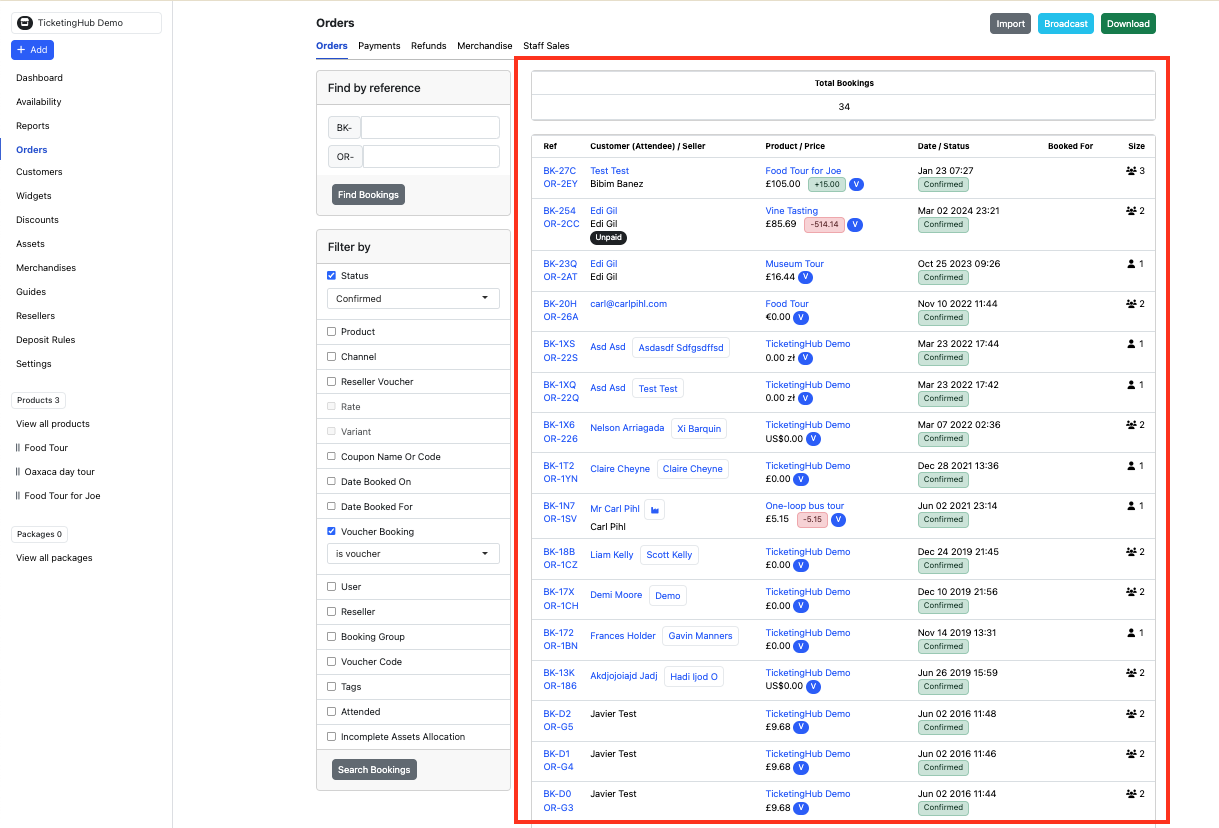
This will show all bookings currently in the voucher stage — including those that were originally confirmed bookings but were returned to a voucher after a date cancellation. These count as unallocated vouchers until a customer redeems them for a new date.
💡 Tip: If you want to narrow the list to a specific product or date range, add additional filters such as Product or Date Booked On alongside the Voucher Booking filter.
Step 4: Identify Potentially Expired Vouchers (workaround)
💡 Note: TicketingHub doesn't currently have a dedicated "Expired" filter. The workaround below uses Date Booked On to surface vouchers that may have lapsed based on your expiry policy.
- On the Orders page, open Filter By.
- Set Voucher Booking to Is Voucher (to show only unredeemed vouchers).
- Use Date Booked On and set the date range to match your expiry window — for example:
- If your vouchers expire after 12 months, filter for bookings made more than 12 months ago.
- If your vouchers expire after 3 months, filter for bookings made more than 3 months ago.
- Click Search Bookings.
This gives you a working list of vouchers that are still unredeemed and may have lapsed, so you can follow up with customers or adjust expiry dates as needed.
💡 Not sure what your expiry period is? Check your voucher settings or reach out to our support team.
If you need to extend a voucher that has already expired, see: How to Change the Voucher Expiry Date.
Updated on: 10/04/2026
Thank you!